Nuvaka › SSH client
An SSH client and SFTP, built into the app
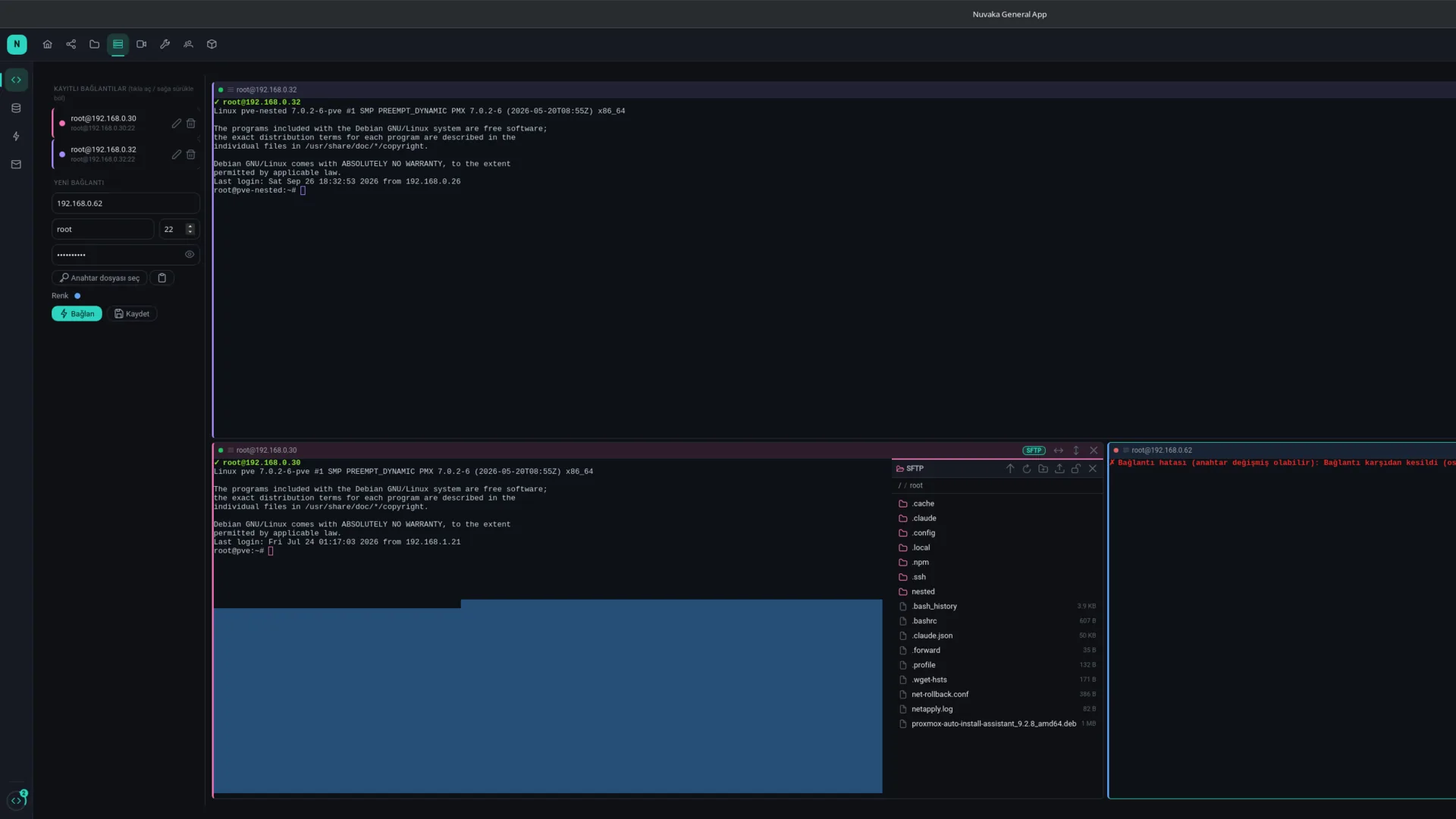
Nuvaka General App has a real SSH terminal inside. You connect to your server with a password or a key file, and split the terminal side by side or top to bottom to work on several servers at once. No separate program is needed to transfer files: an SFTP browser opens next to every terminal pane, and you drag and drop files.
The connection starts from your device
The SSH connection goes straight from your computer to the target server; the traffic never passes through Nuvaka servers and is never recorded. If you choose to save a connection, the address, port, user name and optionally the password or key are stored encrypted in your account, so you can open the same connection from your other computers. If you prefer not to save it, you pick the key file only when connecting and it never leaves your device.
What you get
- Split panes: split the terminal vertically or horizontally, and drag a saved connection onto a pane to open a new session.
- Sign in with a password or a key file; paste a key from the clipboard.
- SFTP in every pane: browse folders, upload and download files with drag and drop.
- A list of saved connections with a colour per server, so you never mix up where you are.
- Host key verification: you are warned before connecting if the server's key has changed.
- In the same app: a table and query editor for PostgreSQL and MySQL, and a key tree and JSON editor for Redis.
Getting started
- Download the app, install it and create your free account.
- Open SSH in the Servers section; enter the server address, user name and password or key file in the left panel.
- "Connect" opens the terminal. Add a server you use often to the list with "Save" and give it a colour.
- To transfer files, press the pane's SFTP button and drag files from your computer onto the pane.
The server's host key is saved on the first connection. On later connections, if the key has changed, the app warns you before connecting; if you did not reinstall your server, this may be a security warning.
Who it is for
Developers who look after a few servers, people with a home server or a Raspberry Pi, and anyone who switches between a terminal and file transfers every day. The SSH client lives in the same app as your cloud storage, device sync and AI assistant.
Platforms and price
A desktop app for Windows, Linux (x86_64 and ARM64) and macOS. Creating an account and the SSH client are free.