Nuvaka › File sharing
File sharing and cloud storage
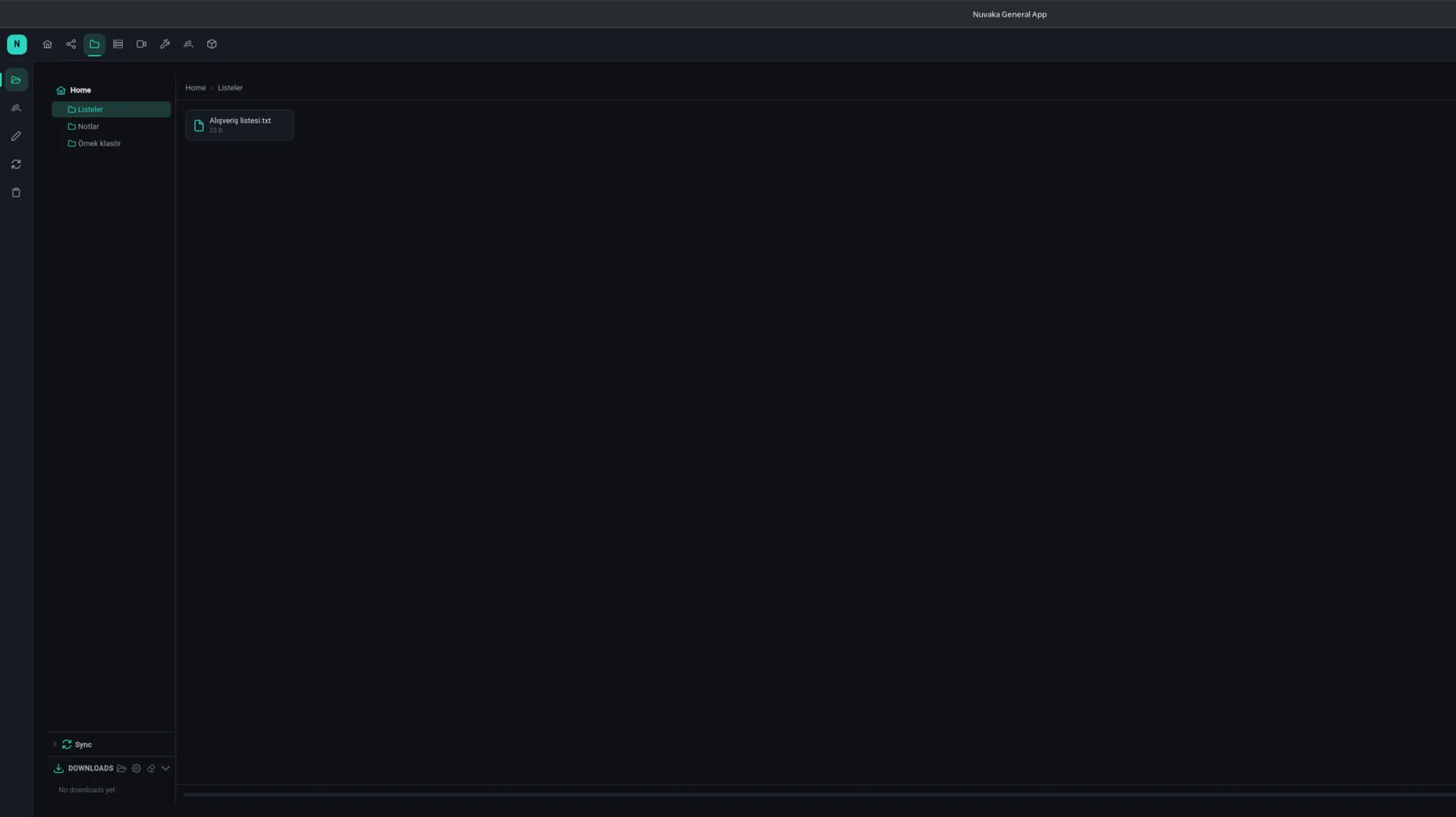
Nuvaka has two ways to share. My files is your cloud storage with folders, reachable from every device. File Share is for quick jobs: upload a file, get a download link, send the link.
My files
- Folders, previews (images, video, PDF, text), moving, renaming and a trash bin.
- Upload a folder with its structure: drag and drop a folder and its subfolders are created the same way.
- Large files go in parts; if the connection drops, the upload continues where it stopped instead of starting over.
- Share with friends and manage access: see who can see what and remove access at any time.
- Share links for files and folders: optional password, expiry date and download limit (including one-time links).
Versions
When a file changes (re-upload, sync, apps or the assistant), its previous state is not deleted; it moves to the file's version history. The file keeps its identity, so share links always show the current state.
- Right-click › View versions: see the date and size of every version and who wrote it (you, an app, the assistant, sync).
- Download, preview or restore an older version with one click; restoring keeps the current state in the history too.
- Older versions are kept for 30 days and up to 20 per file, then removed automatically. They do not count toward your quota; only the current state does.
- You can delete older versions one by one; the current version cannot be deleted (you can delete the file itself).
Encrypted files
An app that encrypts a file on your device (for example the file encryption extension) marks it as "encrypted". Nuvaka creates no previews or thumbnails for encrypted files and the assistant does not read their content; they show a lock icon in the list. When you share an encrypted file, the app warns you: the recipient cannot open it without the password, so send the password another way. The public link page also shows an "ask the sender for the password" note.
Older, unencrypted versions of a file you encrypt may remain in its version history. Nuvaka offers to delete them; in the Versions window you can choose "ask every time", "always delete" or "always keep". Apps cannot delete old versions; deleting always needs your approval.
NuvakaSync: your sync folders in My files
If you have a device connected to sync, a NuvakaSync folder appears at the top of My files. Inside it there is a folder for each device, and under that the folders the device syncs. These are not copies but the sync folders themselves, so they do not count toward your quota twice.
- Open, preview and download files; right-click › Versions takes you to the sync history.
- In folders synced read-write you can create folders, upload, rename and move within the same device; changes reach the device through sync.
- Folders synced read-only on the device are read-only here too.
- You are warned before deleting, because the item is also deleted on the device; versions and the trash are kept.
- If the file changed on another device while you were uploading, your version is not lost: choose to keep both, keep yours or take theirs.
Upload box: let others drop files for you
Create a box with "Send me files" and share its link. The other person drops files from the browser without installing the app; the files land straight in the folder you chose. You can set a file count and size limit, an expiry date and a password, and close the box when you are done. Handy for collecting invoices, documents or photos.
Security, honestly
Transfers use TLS, files are tied to your account and kept on redundant storage. My files is not end-to-end encrypted by default; for truly private files use the end-to-end encrypted Secure Space (keys never leave your device and we cannot see the content), or encrypt a single file on your device as described above. Content reported as breaking the rules is reviewed; details on the privacy page.
Platforms and price
Windows, Linux, macOS and Android. Creating an account and the core features are free; storage has a fair-use limit.
Frequently asked
Does the person opening the link need an account?
No. The link opens in the browser and the file downloads directly. If you set a password it is asked first; a link past its expiry date or download limit no longer works.
Can I turn off a link I shared?
Yes. You see your links in a list and delete any of them; a deleted link stops working immediately. For folders shared with friends you remove access from the same place.
Why is an older version missing?
Older versions are limited to 30 days or 20 per file; older ones are removed automatically. You, or the clean-up after encryption, may also have deleted it.
How large a file can be dropped into an upload box?
You set the per-file size limit when you create the box; if you leave it empty it is 2048 MB per file. Received files count toward your storage.